Showing posts with label DOWNLOADS. Show all posts

Thursday, 4 July 2013

Download all your facebook data

Facebook has got too much of your data like your uploaded photos, messages, status updates, likes, videos etc. Did you know that you have an option to download all of Facebook data from your Facebook account ? Google has given it’s users an option to pull out all your data using Google Takeout [Link]. Well, this is how you do it.facebook data download
  • Login to Facebook and click on settings icon.
  • Click on Account Settings.
  • In the image as shown here, click on ‘Download a Copy’.
  • Now click on ‘Start My Archive’.
The downloaded content will all of your timeline data like photos, videos, wall posts, messages and many other information. Click on start will download your content and the time taken to download depends on how much content you have uploaded all these years, how huge your album is, older your account in years more will be the time taken to download your content. Your  information is available to you in three different places:
Facebook data Archive
  • Downloaded Info – which  includes your timeline info like posts you have shared, messages, photos, videos and more.
  • Expanded Archive – which includes account info like logins, cookies and more. This is in addition to the above downloaded info. You have an option to download this separately.
  • Activity Log – includes history of all your activity from posts you have commented on or liked, to apps you have used, to anything you have searched for. Your search details may not be present if you deleted your Facebook Search History [Link].
Also, don’t forget to keep this data safe as it has your entire Facebook Timeline information.

Monday, 1 July 2013

Adding Background Images To Windows Drives

Isn't it cool to have great wallpaper for your desktop but it might be more fun to have amazing background images for your drives. Drives Background Imageis a Windows freeware application that allows you to set a wallpaper for each disk drive on your computer. This program is very easy to use you only need to select wallpaper for your background, it also provide option to change icons of your drives, changing text color and it provide instant preview of your selected settings. But  keep in mind that Windows 7 users need administrator privileges while running this program, as the application attempts to modify the configuration of the local hard drives. Its pretty nice program for window customization and every one  should try this tool. Follow below steps to download and learn to use this program.


   Features of the program:

  • Autodetect Available Drives
  • Set Background To Multiple Drives
  • Remove Background From Multiple Drives
  • Set Icons To Multiple Drives
  • Remove Icon From Multiple Drives
  • Auto Recover Default Icons
  •  Events Log
  • Drive Preview
  • Icon Preview
  • Easy Clean GUI

Uninstall WindowsProgrammes With A Right Click

Uninstall Windows programmes with a right click
As you know when ever we want to uninstall any windows program we need to go to control panel and manually uninstall them. But here is a trick which let you uninstall any windows program from their desktop shortcuts. MenuUninstaller is a free peace of software that adds an "Uninstall" option to the Windows context menu so you can remove programs from their shortcuts.

How To Uninstall WindowsProgrammes With A Right Click ?

  1. Download  Menu Uninstaller  and install it on your pc.
  2. After installing an uninstall option will be added to your windows context menu.
  3. Right click on any shortcut and you will See Uninstall option as below.
Uninstall WindowsProgrammes With A Right Click
  4. Click on it to uninstall any programme.
  5. Check out some other cool trick and tips given below.

Transform Your Windows 7 To Mac Os X


                    Ever wanted to experience the look of Mac Os X, If yes then here i brought you an amazing mac theme for your windows.This will give your computer a completely new look like mac. This is great theme to experience Mac Os X. Download the file from below link and enjoy mac os x theme.

  • Extract the file and run it as administrator.
  • Right click on file and click on Run as administrator.
  • Password for the rar file is tricks4u

Sunday, 30 June 2013

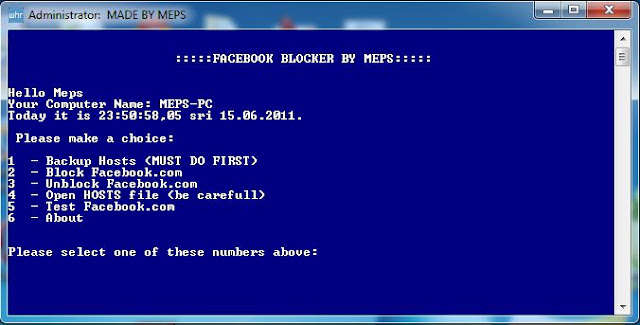
Block Facebook On Your Computer In Few Simple Steps

facebook blocker

How To Use Facebook Blocker ? 

 1. First download Facebook Blocker by Clicking Here
  2. Extract the file and right click on Facebook Blocker.exe and run it as administator (Important)
  3. Press 1 in order to  backup your host file to be on the safe side.
facebook blocker
  4. Now Press 2 to block facebook
  5. Its time to check if facebook is blocked or not to do that Press 5
  6. Hope this help you if you have any question leave a comment below.